Integrating Google Vertex AI with Progress Agentic RAG
This guide provides step-by-step instructions for deploying Google Vertex AI and integrating it with Progress Agentic RAG to enable AI-powered search capabilities using Google's Gemini models.
Prerequisites
Before beginning the integration process, ensure you have the following:
- An active Google account
- Access to the Google Cloud Console
- A valid billing account configured in Google Cloud Platform
- Administrative access to Progress Agentic RAG
Integration Steps
1. Configure Google Cloud Platform
1.1 Create a Google Cloud Project
- Sign in to the Google Cloud Console
- Create a new project or select an existing project
- Associate a billing account with your project to enable API usage and track consumption metrics
2. Create and Configure Service Account
2.1 Create Service Account
- Navigate to IAM & Admin > Service Accounts in the Google Cloud Console
- Click Create Service Account
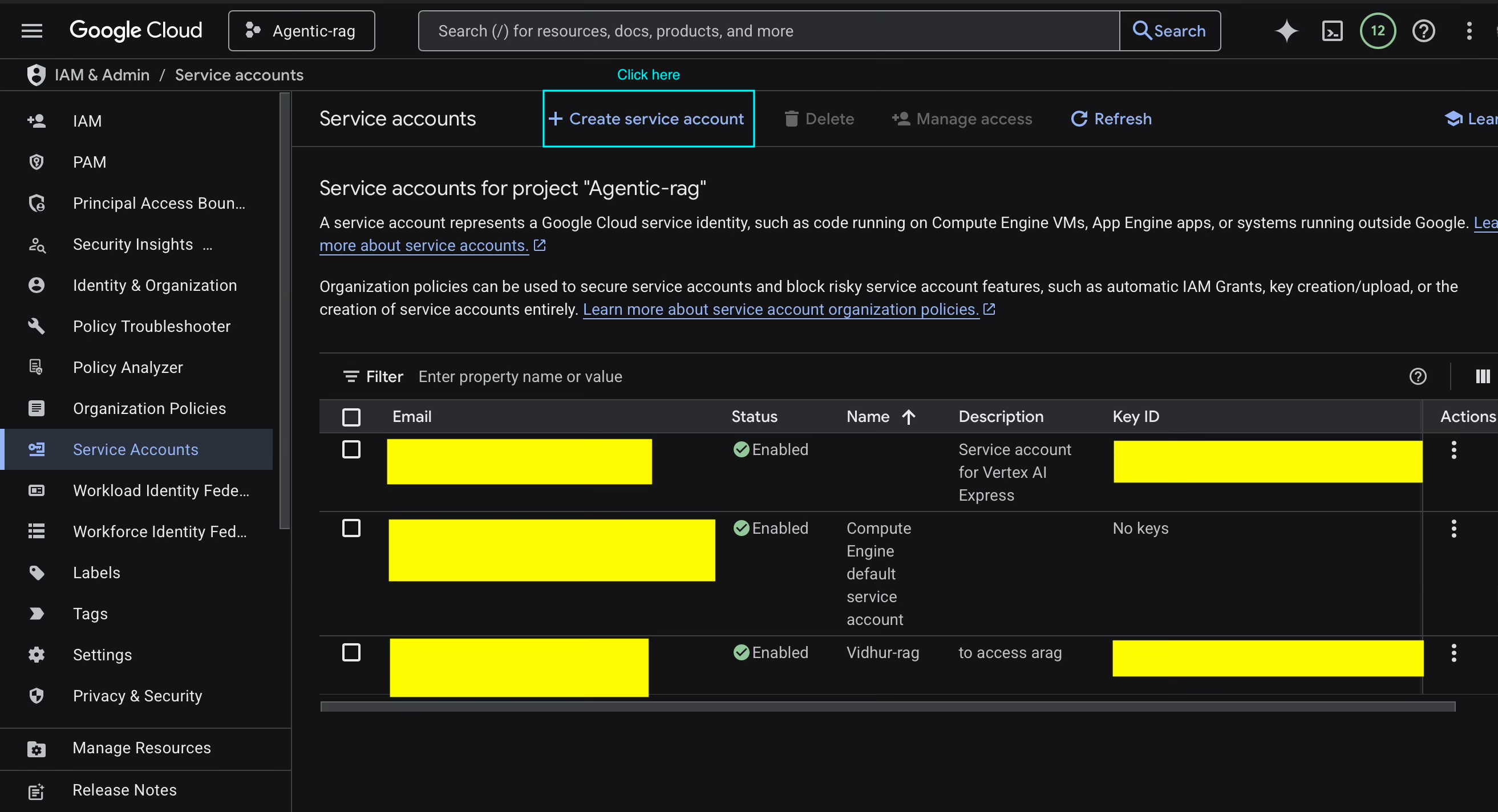
- Provide the following information:
- Service account name: A descriptive name for the service account
- Service account ID: A unique identifier (auto-generated from the name)
- Description: Brief description of the service account's purpose
- Click Create and Continue
2.2 Assign Permissions
- Grant the necessary roles and permissions required for Vertex AI operations
- Configure principals who should have access to this service account (optional)
- Click Done to complete the service account creation
2.3 Generate and Download Credentials
- Locate your newly created service account in the service accounts list
- Click on the service account to open its details
- Navigate to the Keys tab
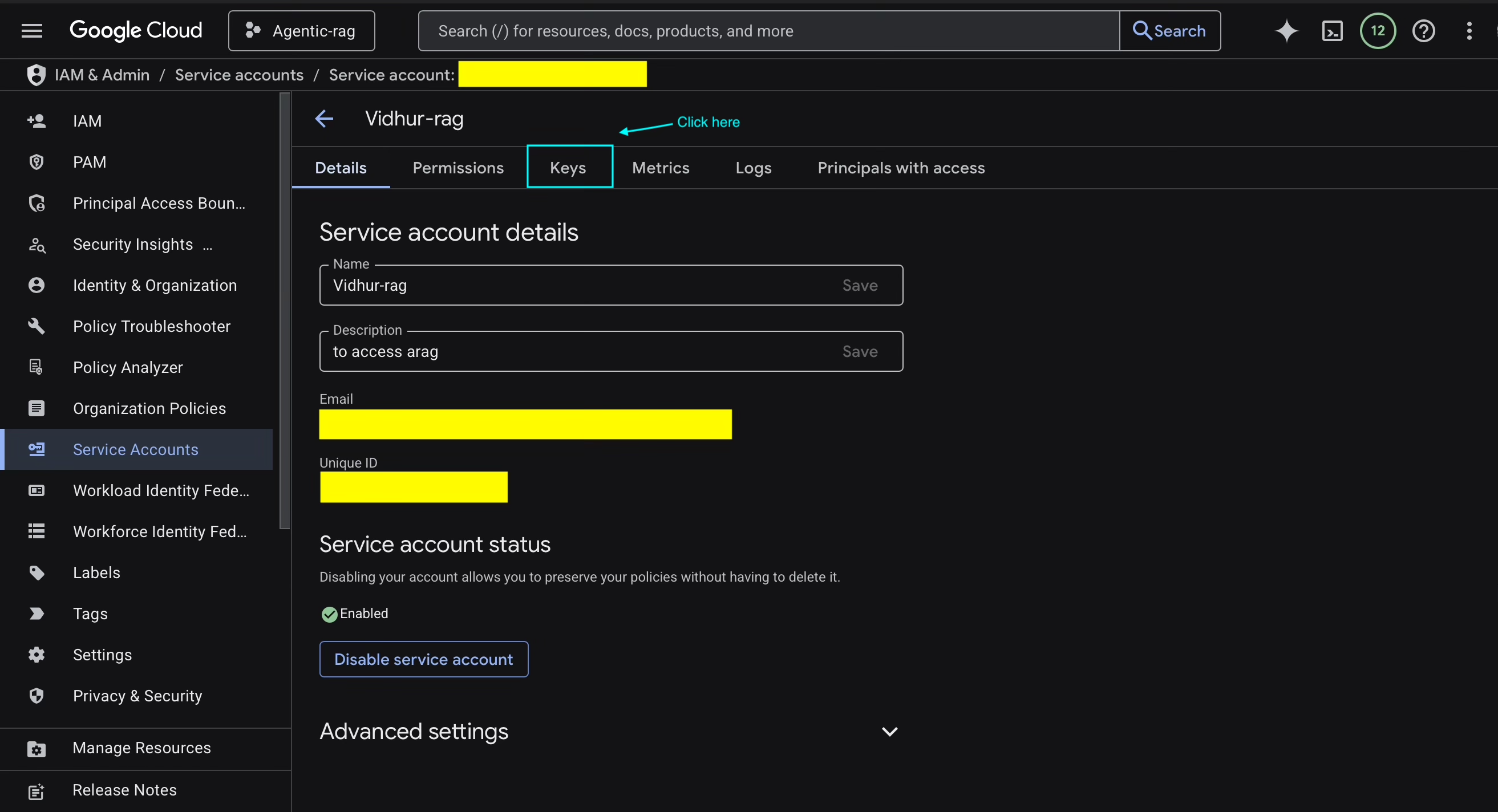
- Click Add Key > Create new key
- Select JSON as the key type
- Click Create to generate and download the JSON key file
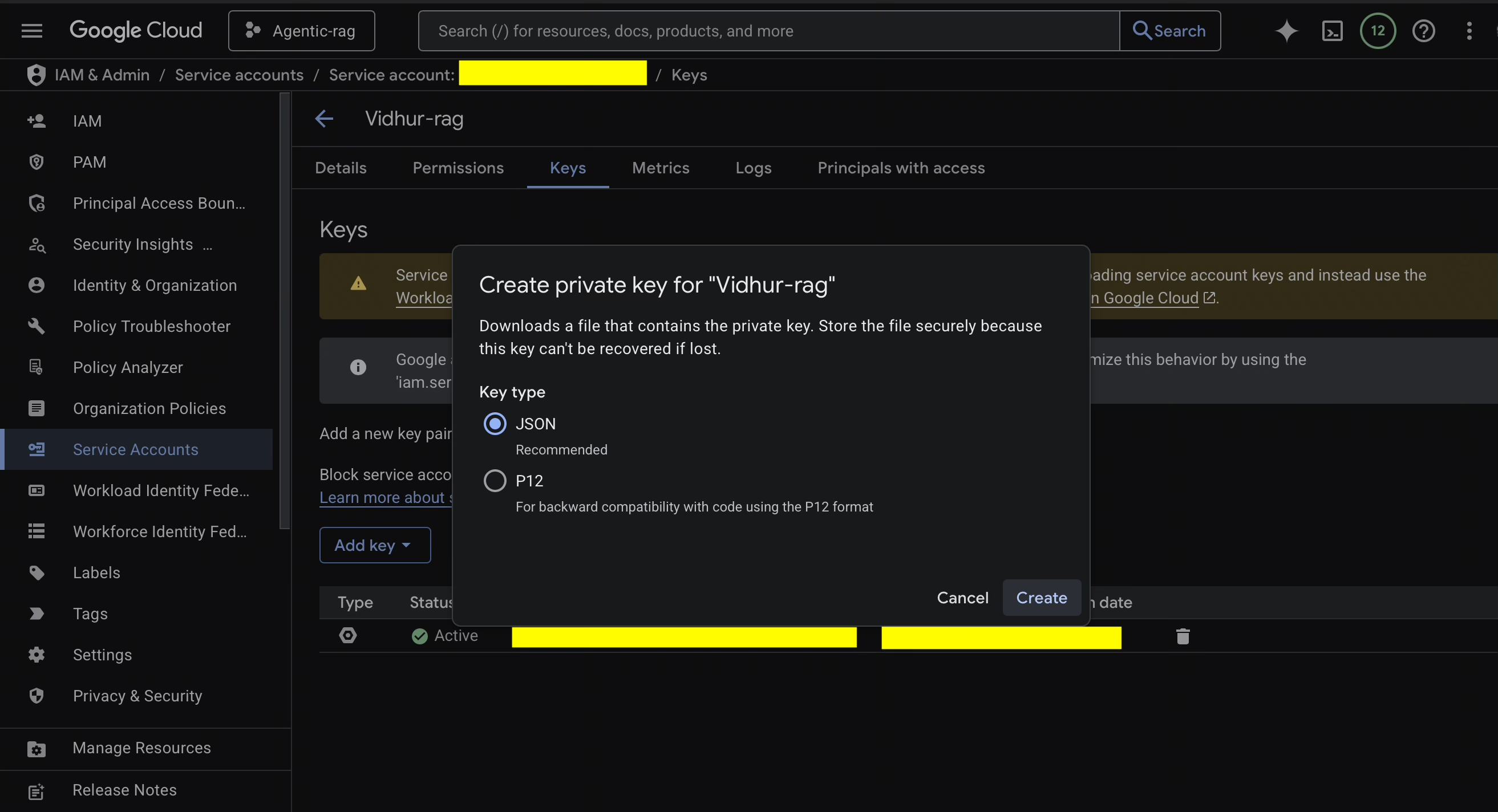
- Store the downloaded JSON file securely. This file contains sensitive credentials
3. Select Vertex AI Region
- Navigate to Vertex AI > Model Registry in the Google Cloud Console
- Review available regions (e.g.,
us-central1,europe-west4) - Select a region based on your geographic requirements and latency considerations
- Note the selected region identifier for use in the configuration step
4. Configure Progress Agentic RAG
4.1 Access AI Models Configuration
- Log in to the Progress Agentic RAG dashboard
- Navigate to the AI Models tab
4.2 Configure Google Gemini Model
- Select your desired Google Gemini model from the available options
- Enable the Use your own Google key toggle
- In the JSON Credential field, paste the complete contents of the JSON key file downloaded in Step 2.3
- Enter your Vertex AI location (region identifier from Step 3)
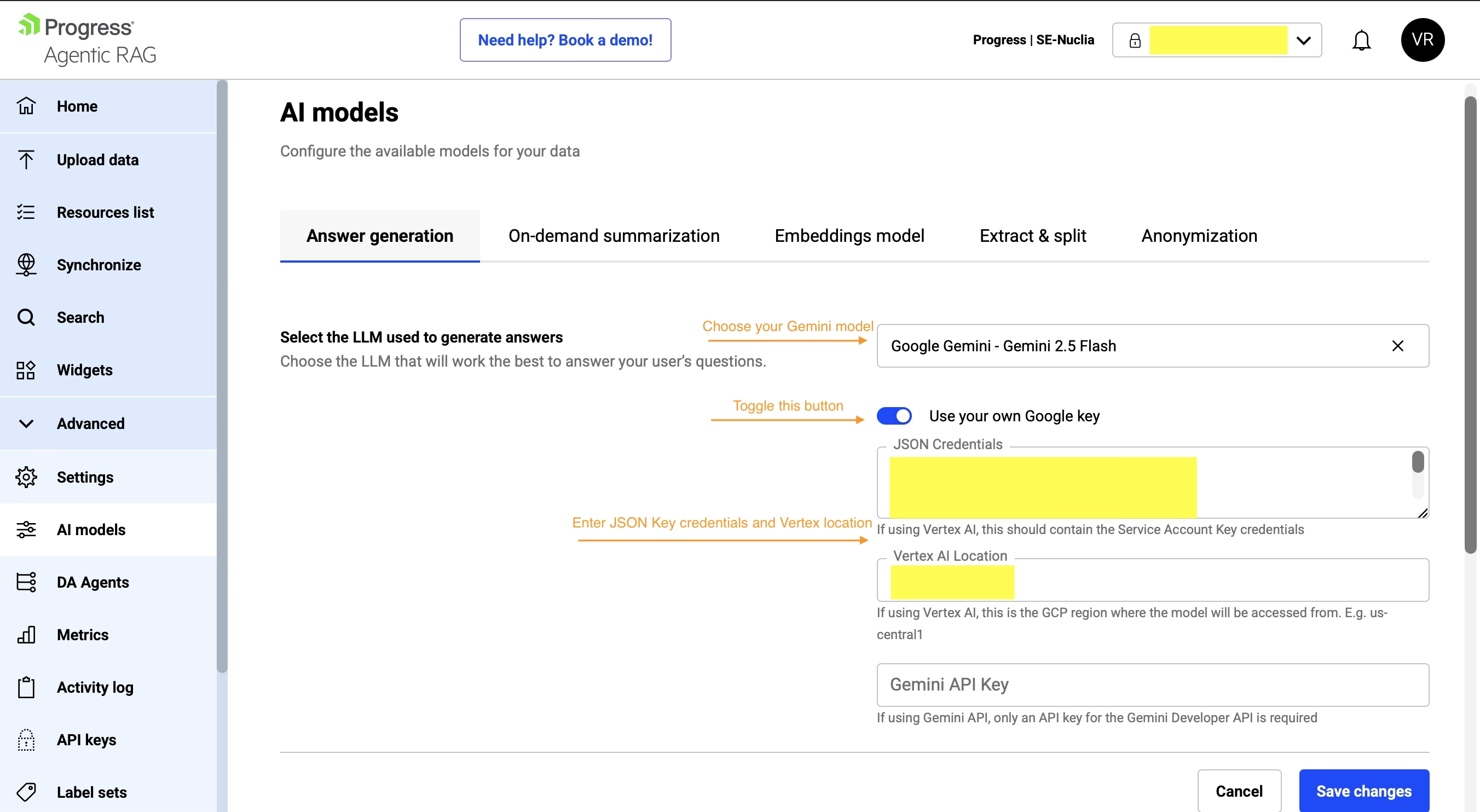
- Click Save Changes to apply the configuration
5. Verify Integration
5.1 Configure Search Settings
- Navigate to the Search tab in Progress Agentic RAG
- Verify that the selected search configuration is using the Gemini model you configured
5.2 Test the Integration
- Submit a test query through the search interface
- Wait for the response to be generated
- A successful response confirms that the Vertex AI integration is functioning correctly
Troubleshooting
If you encounter issues during the integration process:
- Authentication errors: Verify that the JSON credentials file is correctly formatted and contains valid credentials
- Permission errors: Ensure the service account has the necessary Vertex AI permissions
- Region errors: Confirm that the region specified in Progress Agentic RAG matches your Vertex AI configuration
- No response: Check your Google Cloud billing account status and API quota limits
Security Best Practices
- Store JSON credential files securely.
- Regularly rotate service account keys according to your organization's security policies
- Implement principle of least privilege when assigning service account permissions
- Monitor service account usage through Google Cloud's audit logs
Additional Resources
For additional support or questions regarding this integration, please contact Progress support team.